> For the complete documentation index, see [llms.txt](https://docs.getsphere.com/llms.txt). Markdown versions of documentation pages are available by appending `.md` to page URLs; this page is available as [Markdown](https://docs.getsphere.com/features/integrations/prebuilt-connectors/measure-integration.md).
# Measure Integration
Integrating Measure with Sphere enables:\
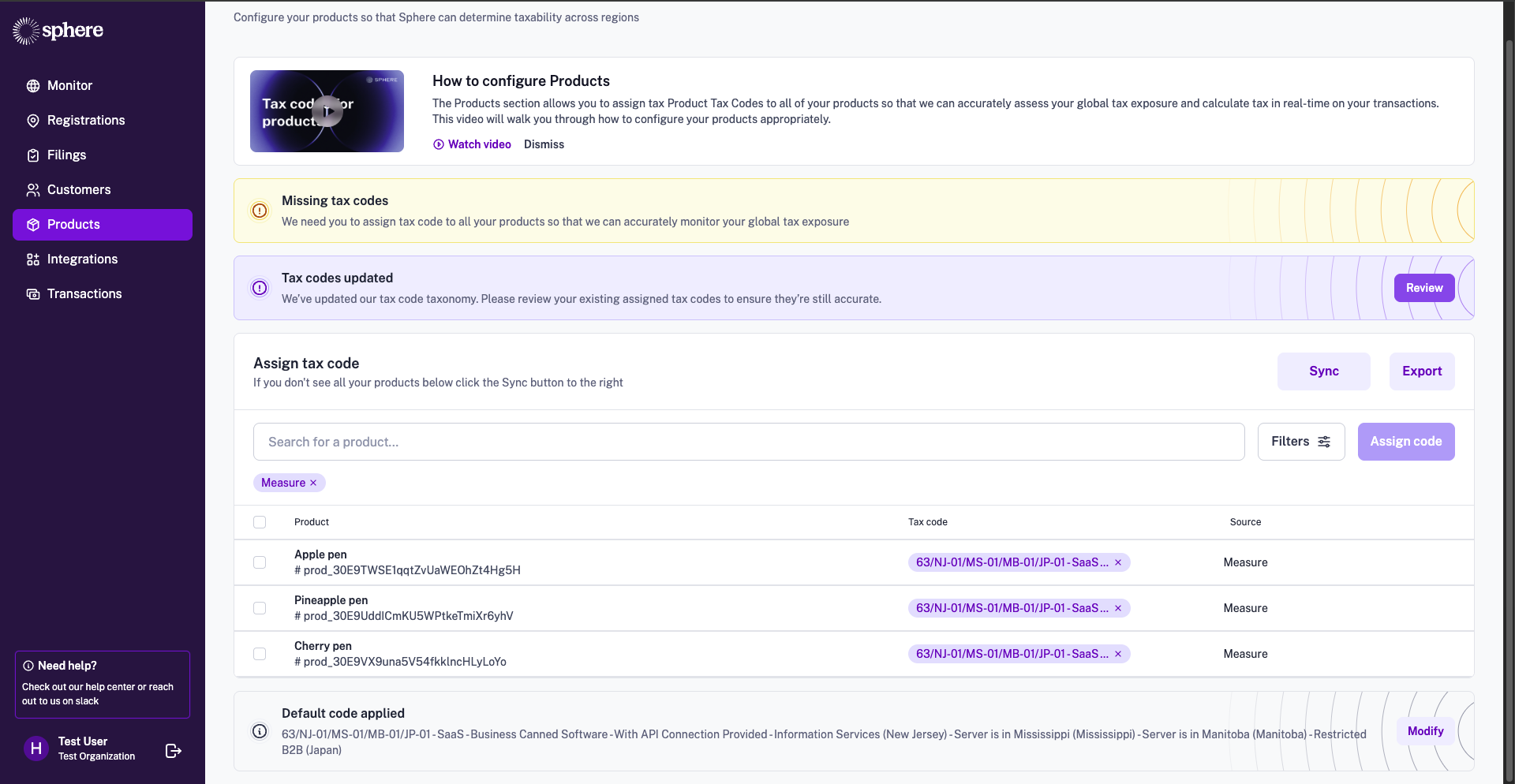
a) seamless data imports (limited functionality as of now as we only sync products and customers), and\
b) real-time tax calculation on Measure invoices.
This guide walks you through generating an API key in Measure and connecting it to Sphere for a smooth, secure integration. It also explains how to configure the Sphere Tax API in Measure to ensure precise tax calculations.
### Part 1: Configure Data Synchronization from Measure to Sphere
**Note:** Currently, Sphere does not support importing invoices or credit notes from Measure. At this time, we only import products and customers to enable tax calculation. Our team is actively working on adding full transaction import support, and we appreciate your patience as we build this feature. We’ll share updates as soon as transaction imports become available.
Follow the steps below to get started:
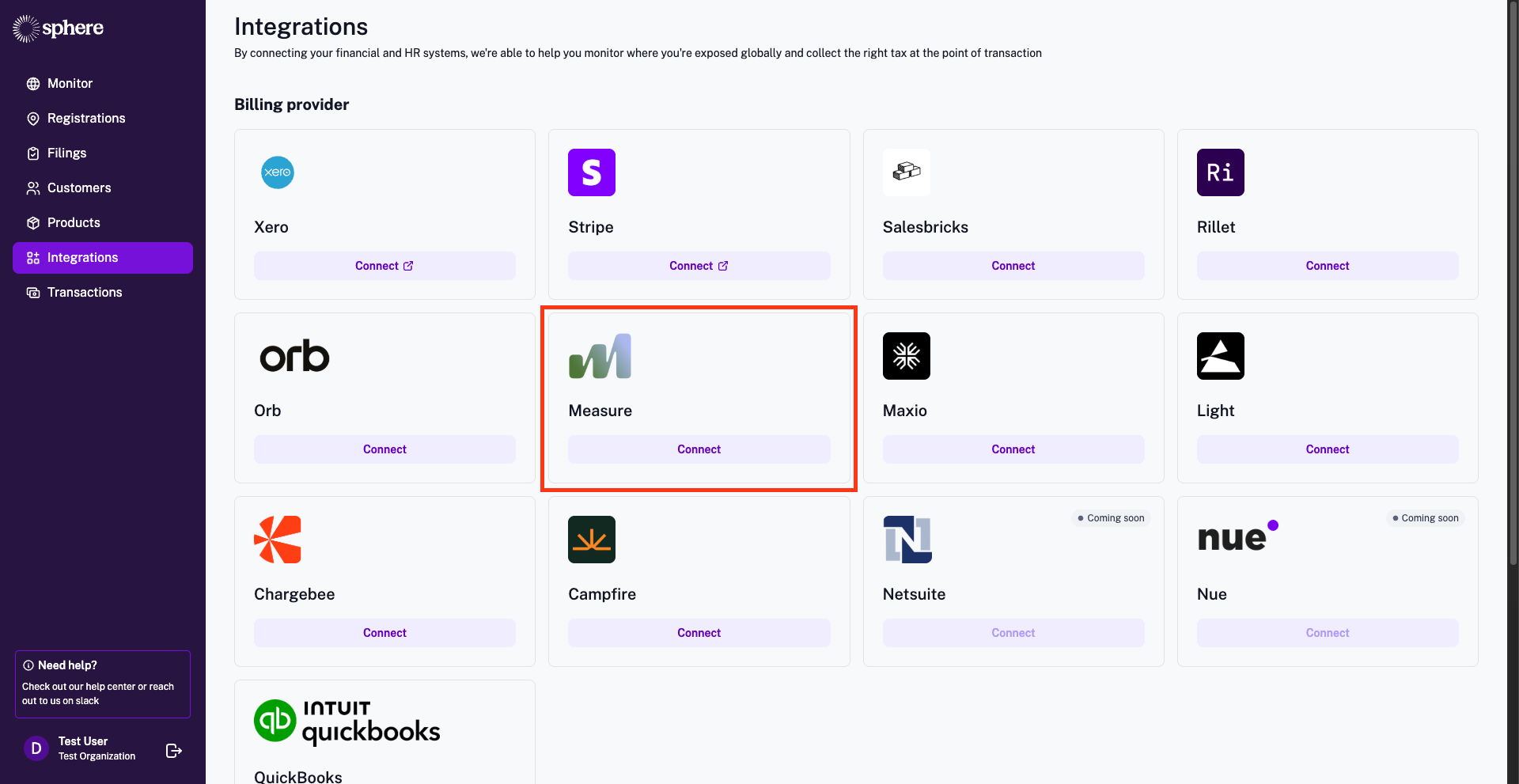
1. In your Sphere account, click on the **Connect** button on the Measure tile.
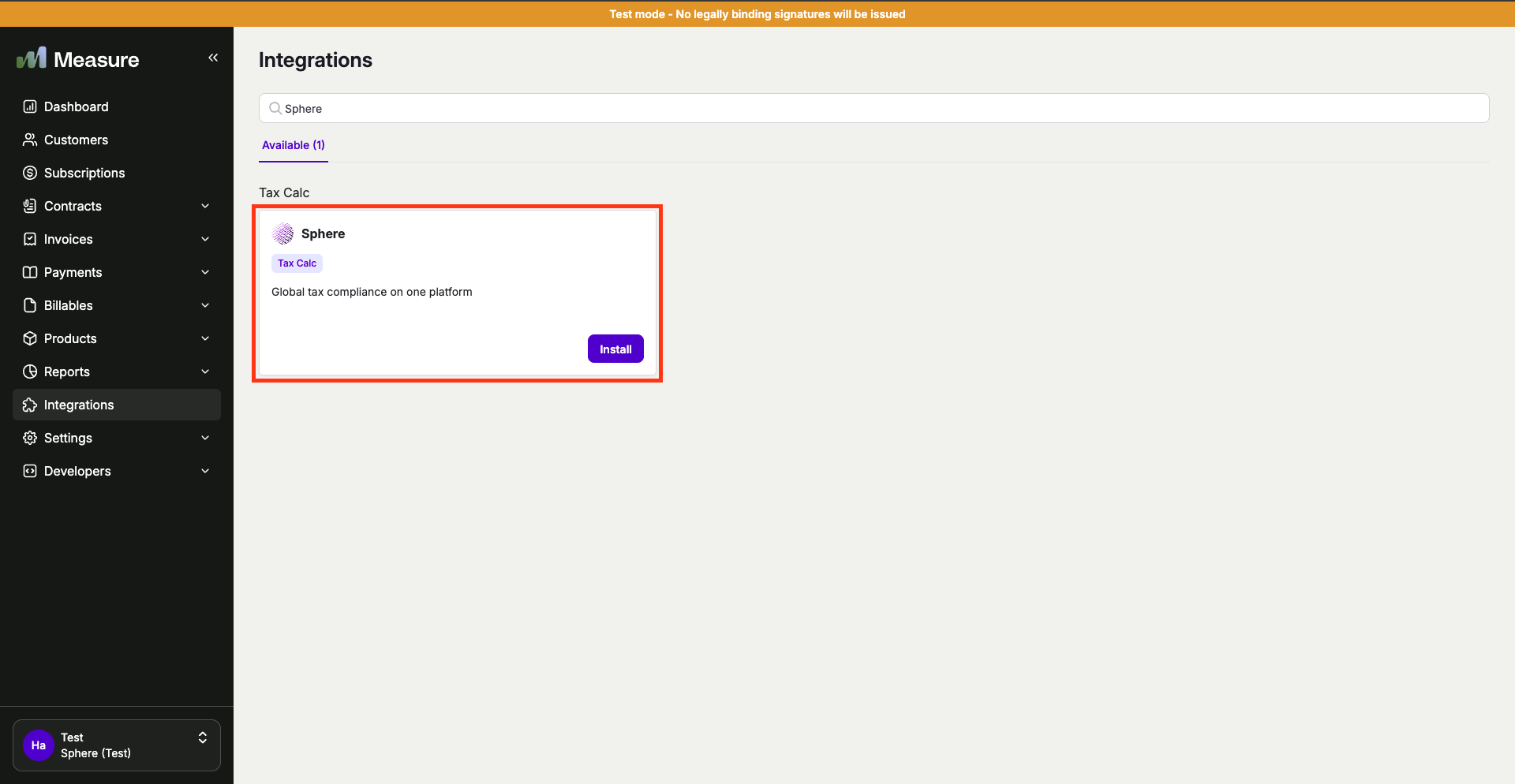
2. In a new window, open your Measure Dashboard and navigate to the **Integrations** tab from the left-hand menu. Locate the **Sphere App** and click **Install**.
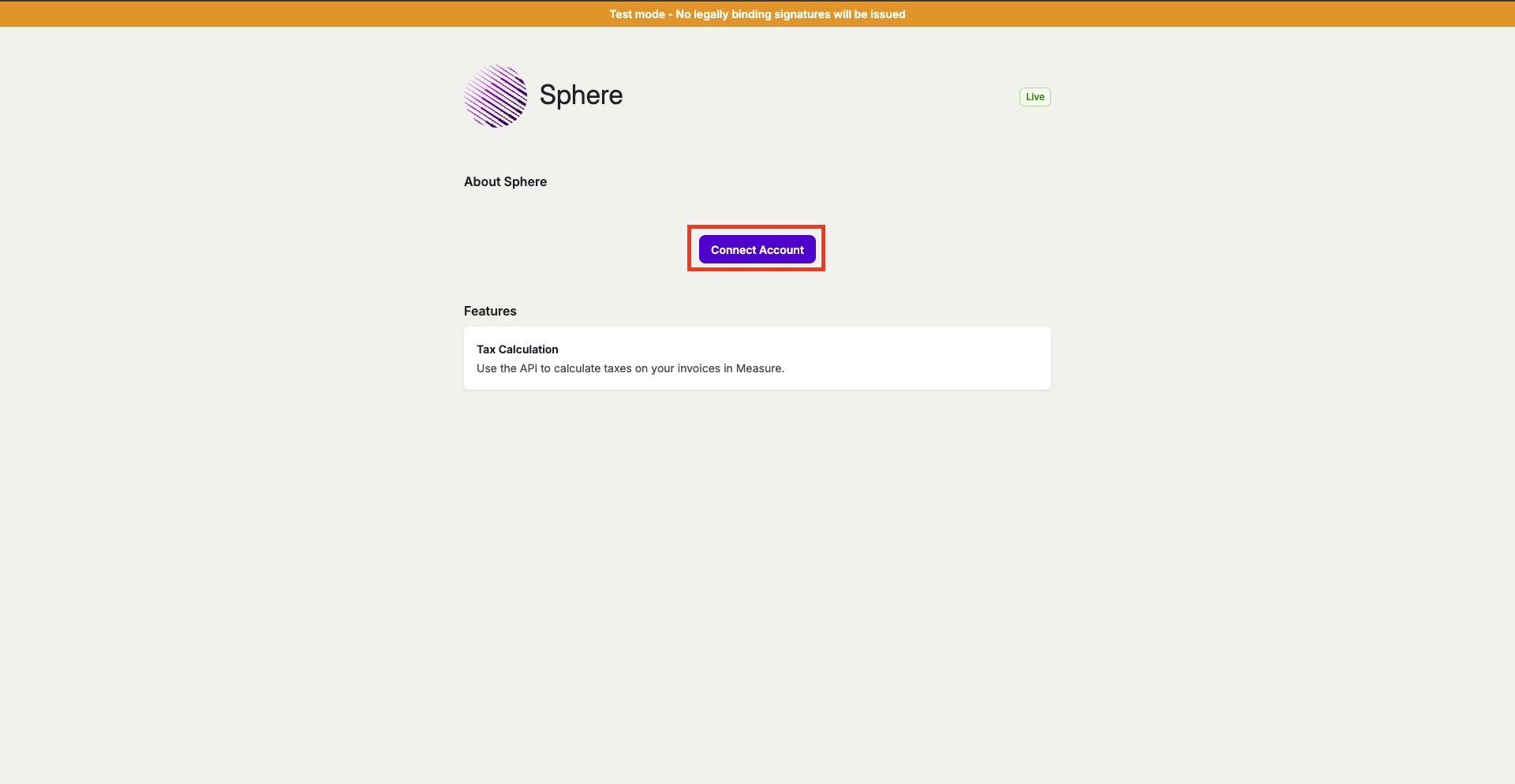
3. Click the **Connect Account** button.
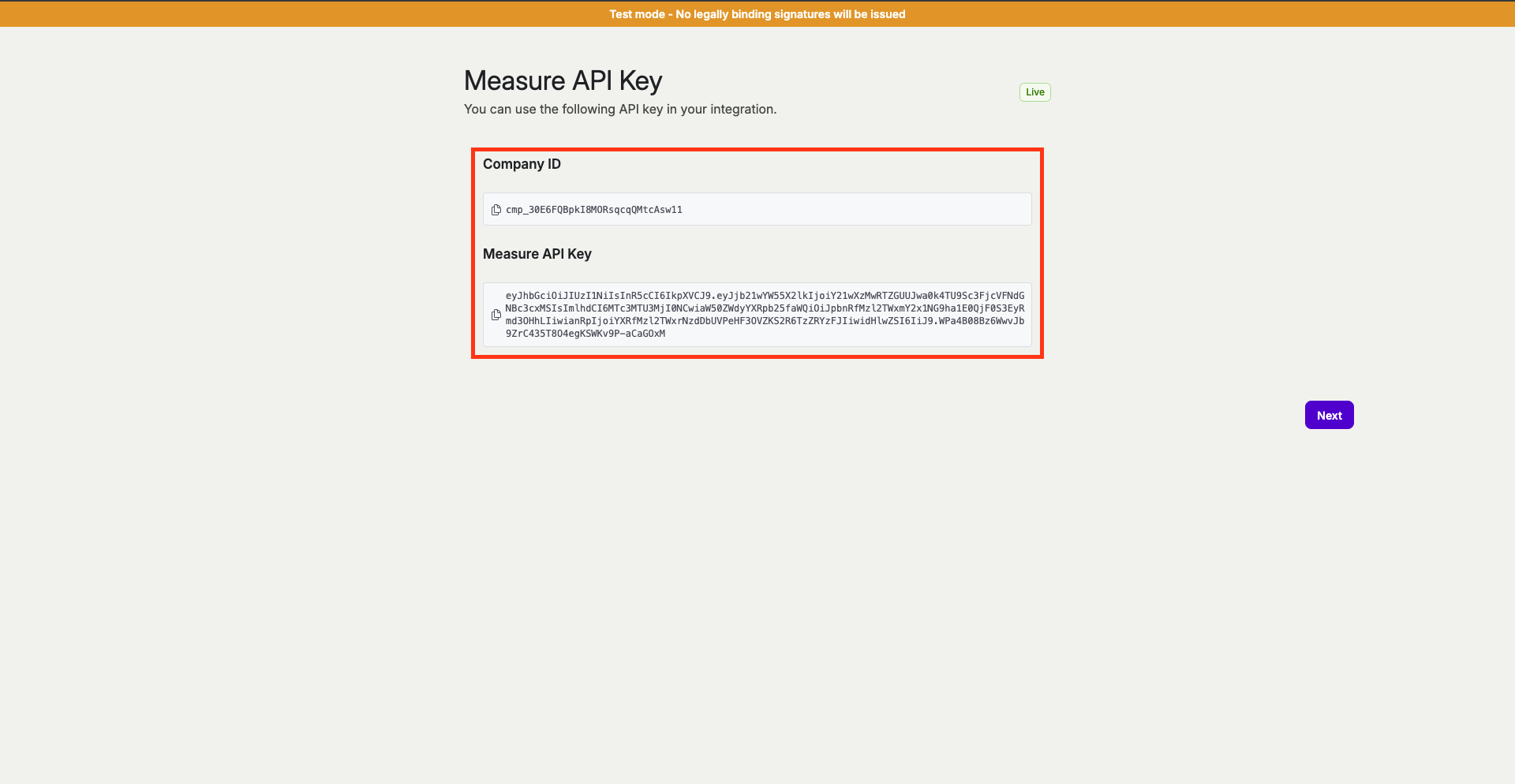
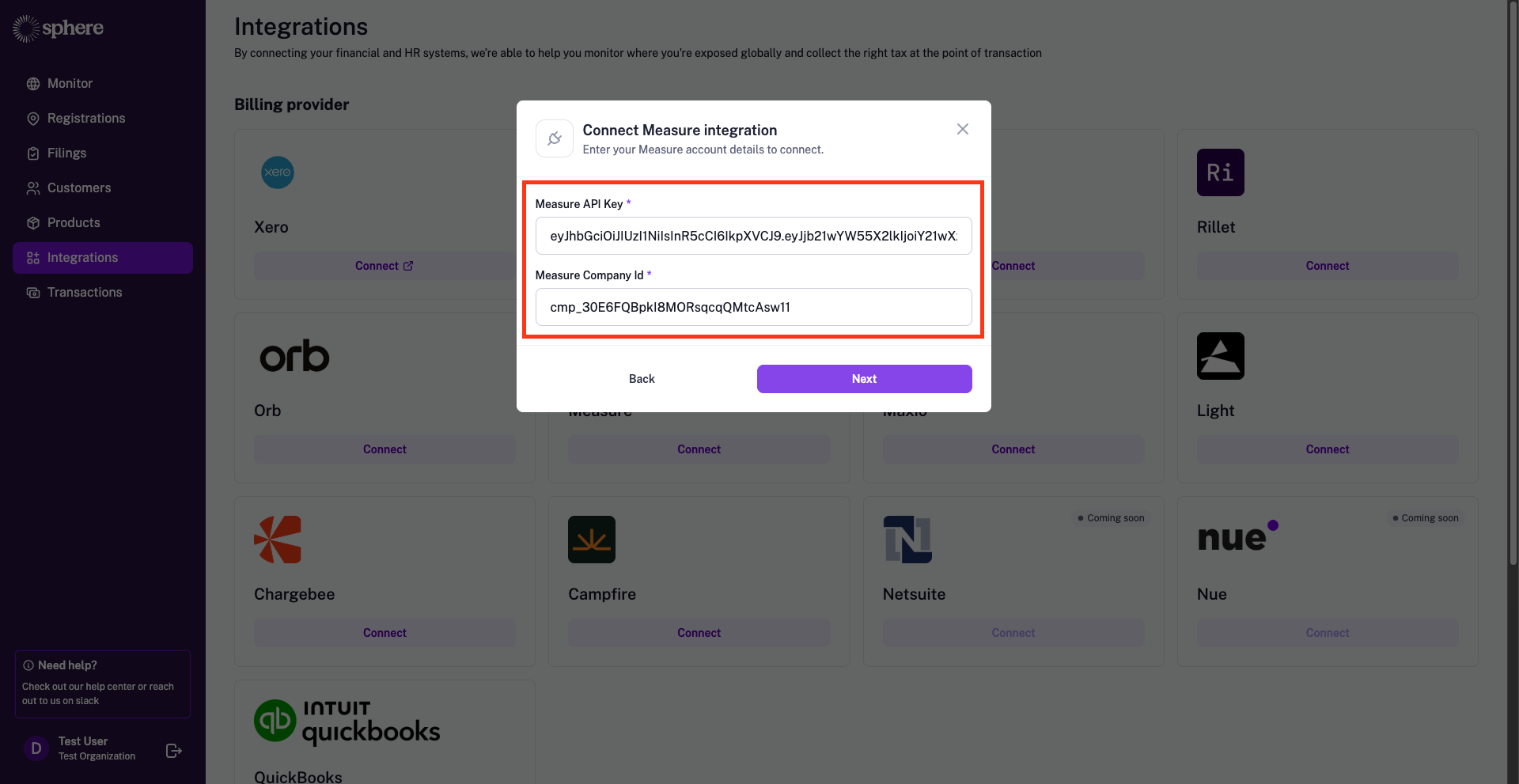
4. Copy the required values — **Company ID** and **Measure API Key** — from Measure and paste them into Sphere. Then, click **Next** to continue.
5. You’re all set! Once the connection is successful, data will start importing, and your products will appear in Sphere shortly thereafter.
### Part 2: Configure Sphere Tax API Key for Tax Calculation
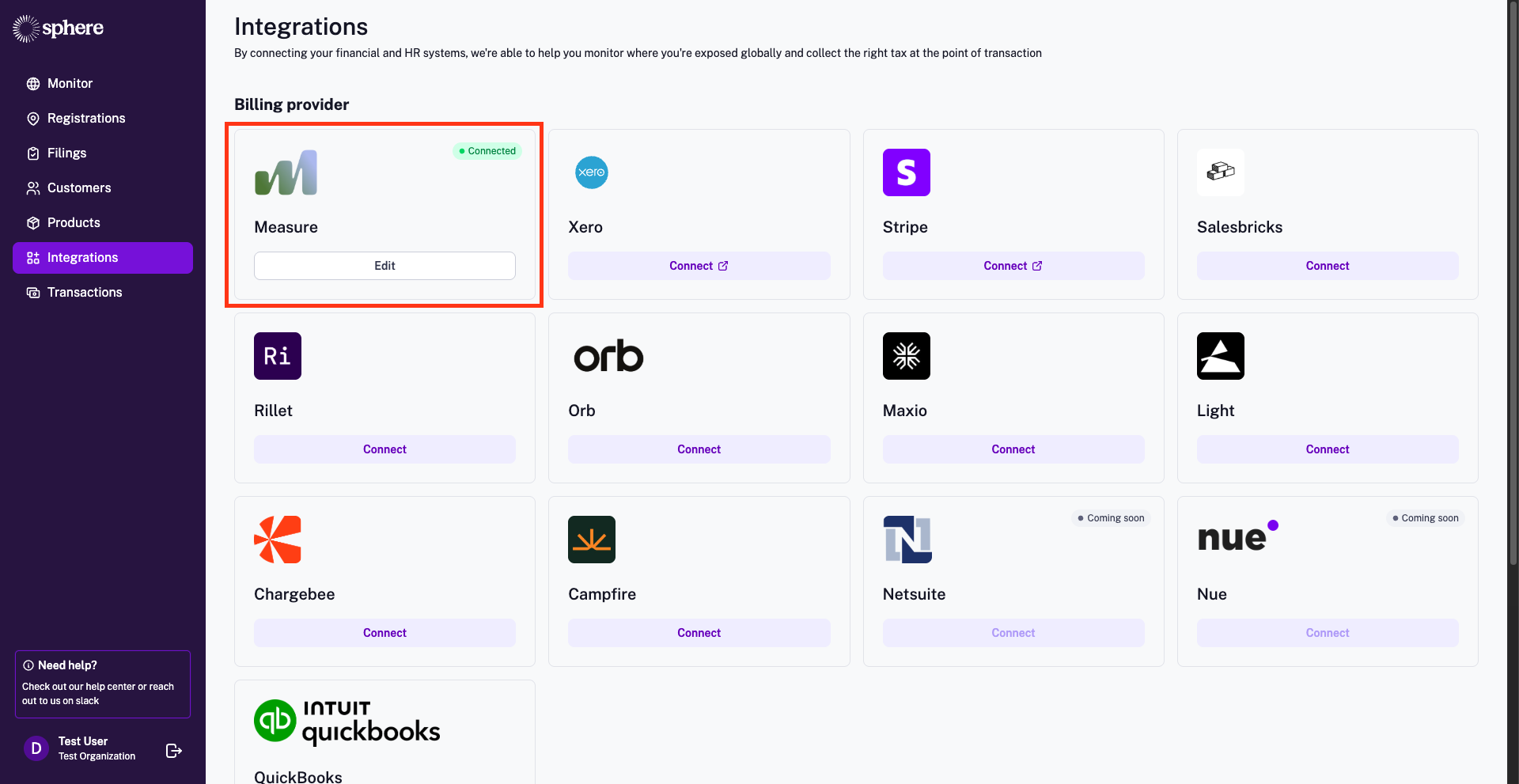
1. Click the **"Edit"** button on the Measure integration card to make changes.
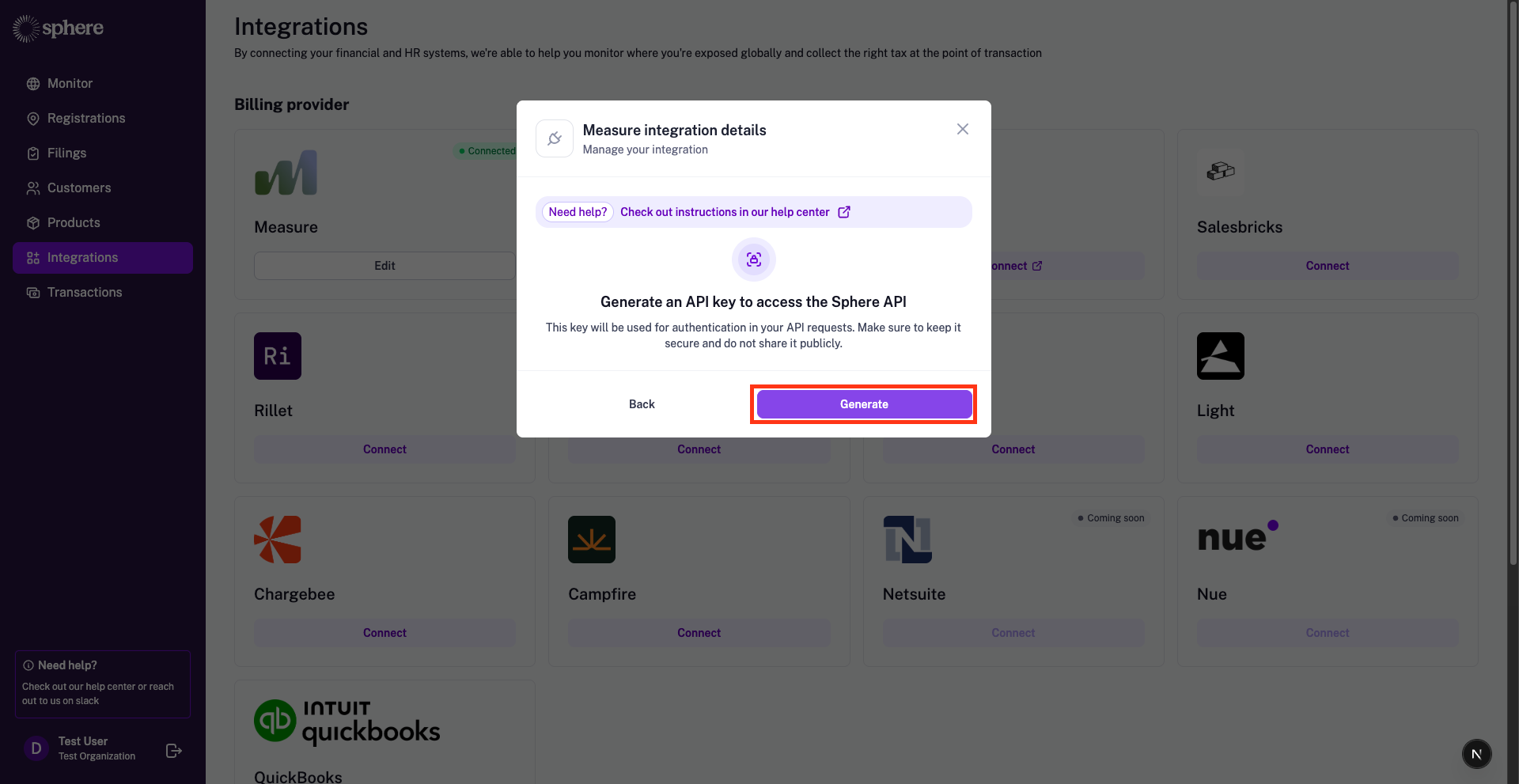
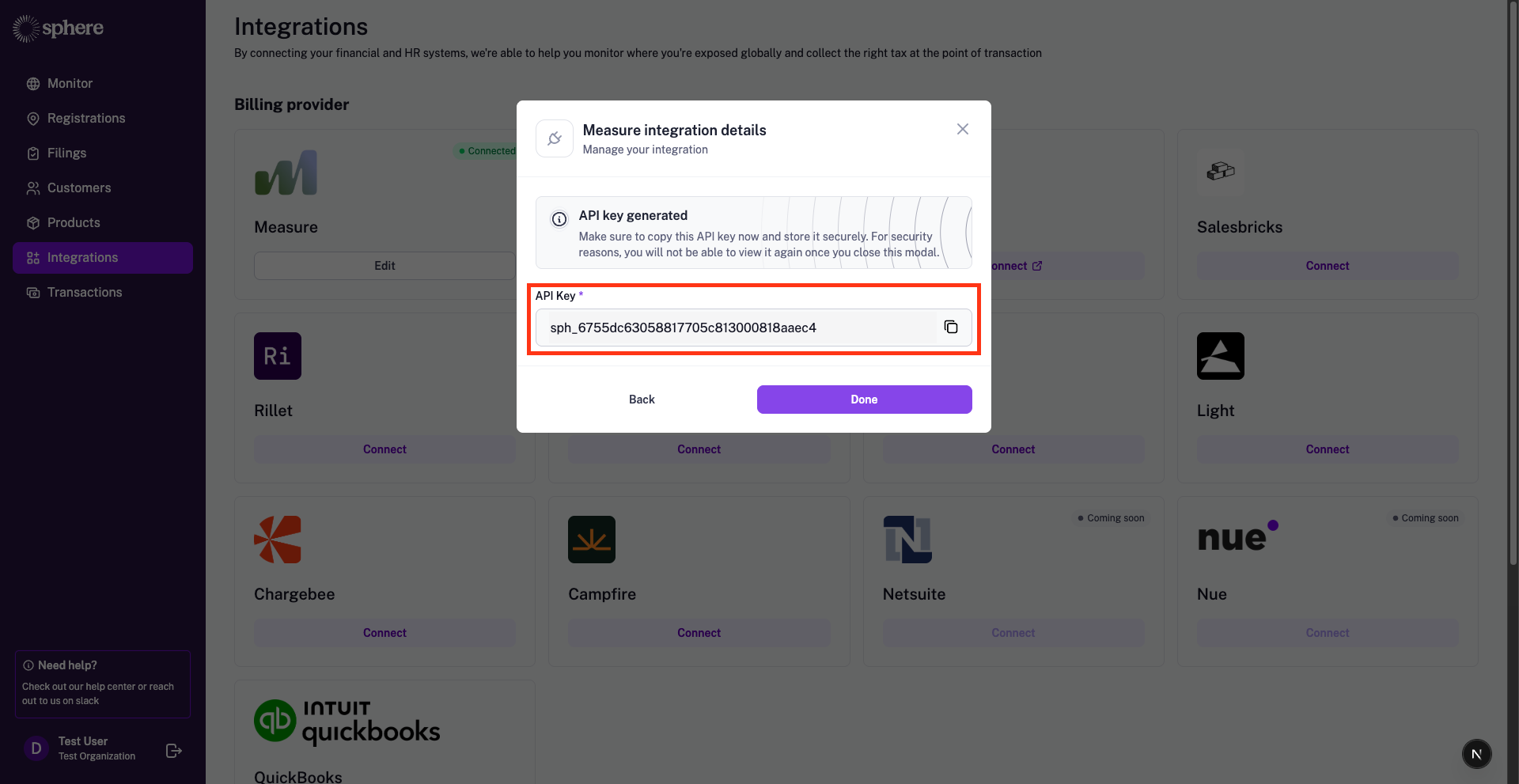
2. This will open a modal displaying the integration details. Click **"Generate"** to create a new API key.
3. Follow the steps to create a new API key. Make sure to store the newly generated key securely, as you won’t be able to view it again later.
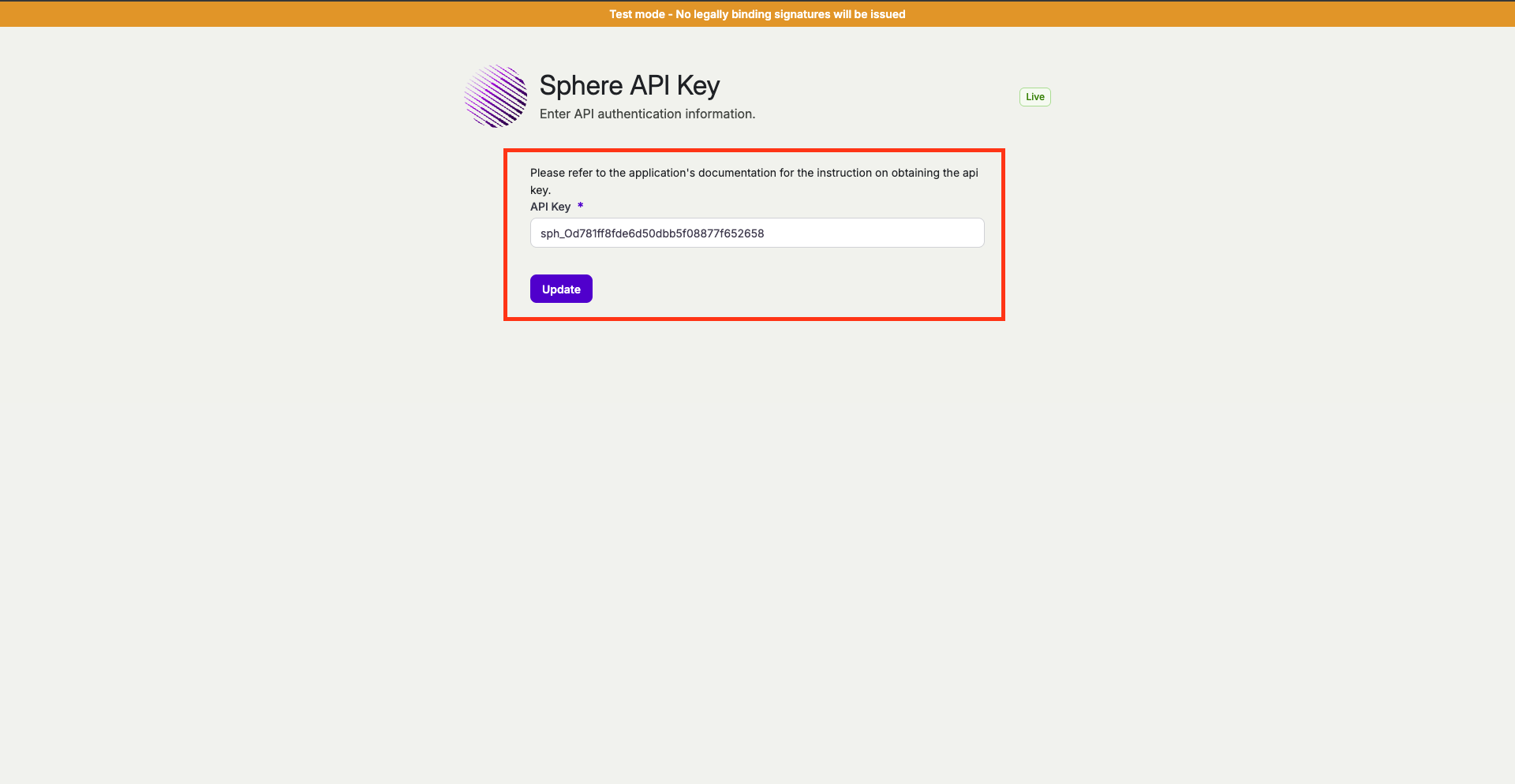
4. Then, in Measure, paste the newly generated API key into the field and click **Update**. Your integration is now complete.
5. Ensure all your 'Subscribed Regions' in Sphere have 'Tax Calculations' settings switched to Yes (see video [here](https://www.loom.com/share/6254e72b130c44808a59513046ee60ea?sid=463c87f3-0683-4622-a479-0f960620d332) on how to ensure this is done).
***
### Set up a connection between your Measure test account and Sphere
You’ll need to request the Measure team to create a test account for you, which can then be connected to your Sphere test account.
**Note:** Before proceeding, check with your Sphere representative to ensure your test account is properly configured and ready for testing.
.png?alt=media&token=f9474b47-1564-4cc4-8b19-63ea29102372)